Managing client documents is a key part of staying organized and efficient. With Agentcis, you can download multiple files from a client’s profile at once using the Bulk Document Download feature. This feature not only saves time but also helps keep track of downloaded documents for record-keeping, auditing, or backup purposes.
Follow the steps below to download multiple documents in just a few clicks.
How to Use Bulk Document Download
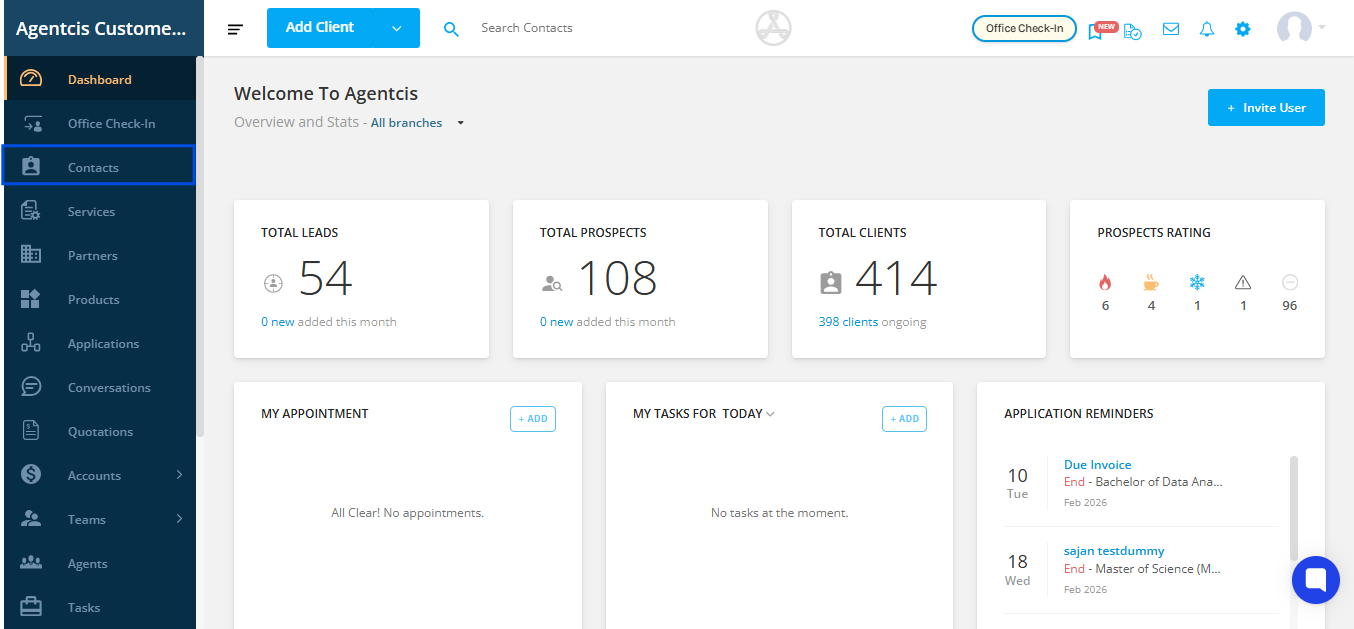
Step 1: Go to Contacts
From your Agentcis dashboard, navigate to the Contacts tab in the main menu.
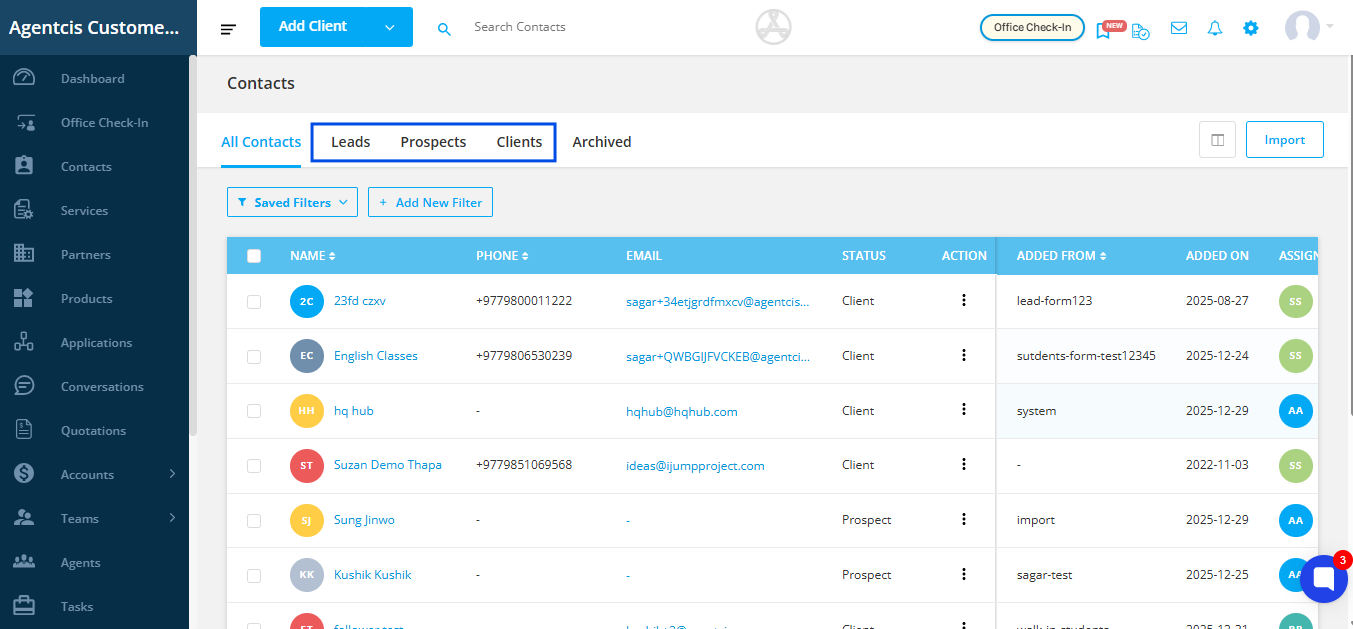
Step 2: Select Your Contact Type
From the Contacts section, choose the category you need: Clients or Lead or Prospects. This will filter the list to show only the contacts within that category, allowing you to proceed to select the specific contact whose documents you wish to download.
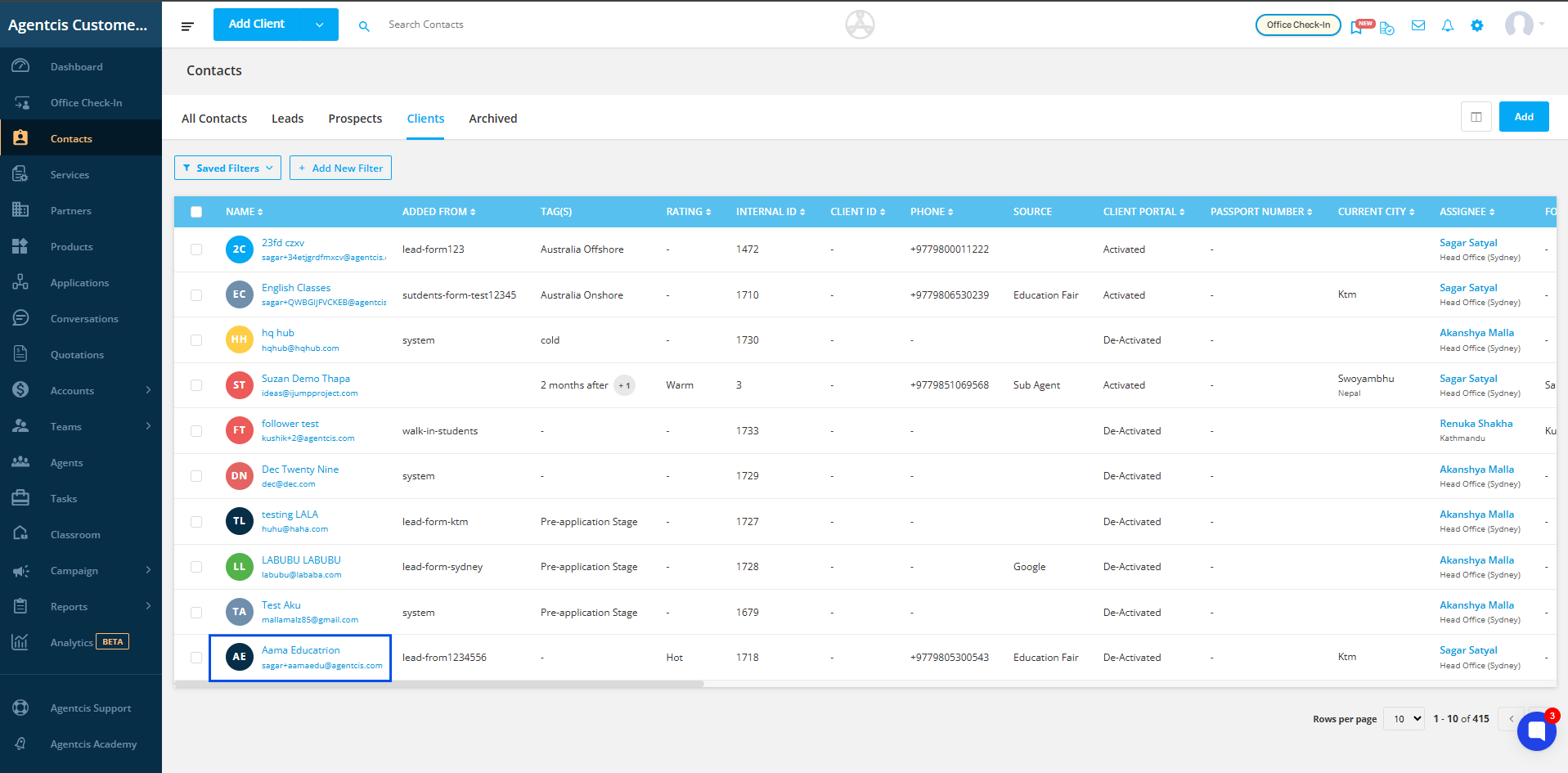
Step 3: Choose a Contact
Select the contact whose documents you want to download.
Step 4: Open the Documents Tab
Inside the client’s profile, click on the Documents tab. Here, you’ll see all files uploaded for this client.
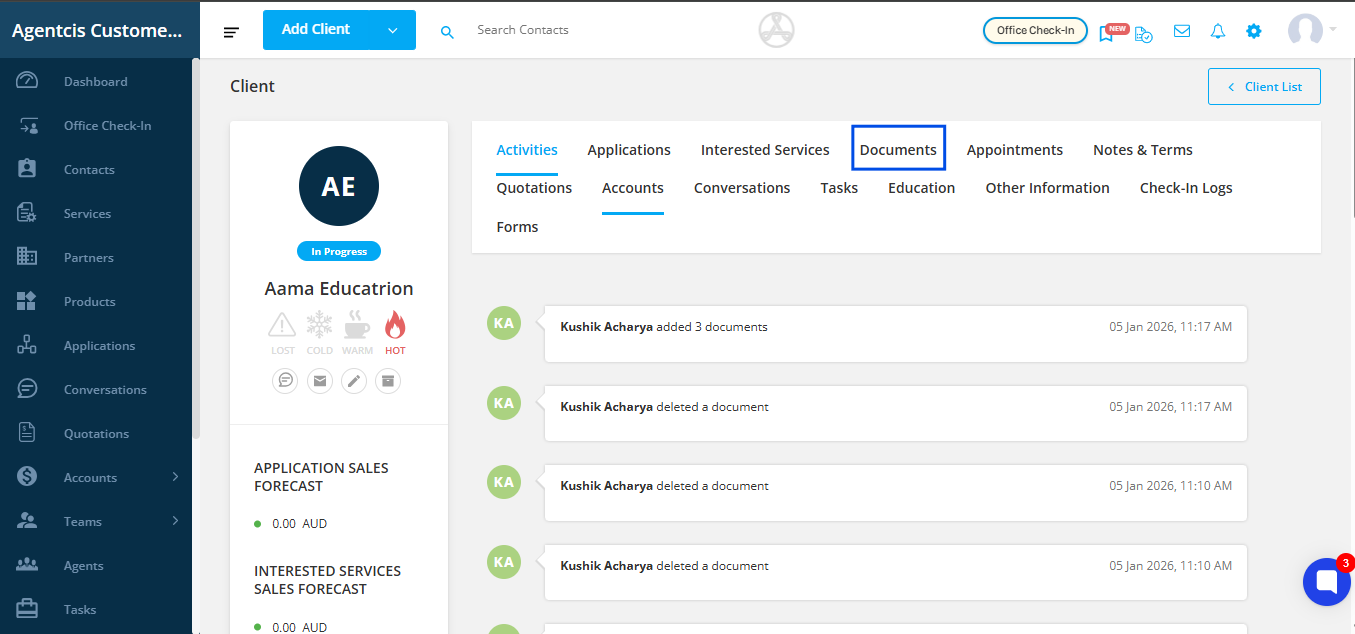
Step 5: Select Documents
You can either:
Select all documents by checking the box at the top of the list, or
Select specific documents by checking the boxes next to the files you need.
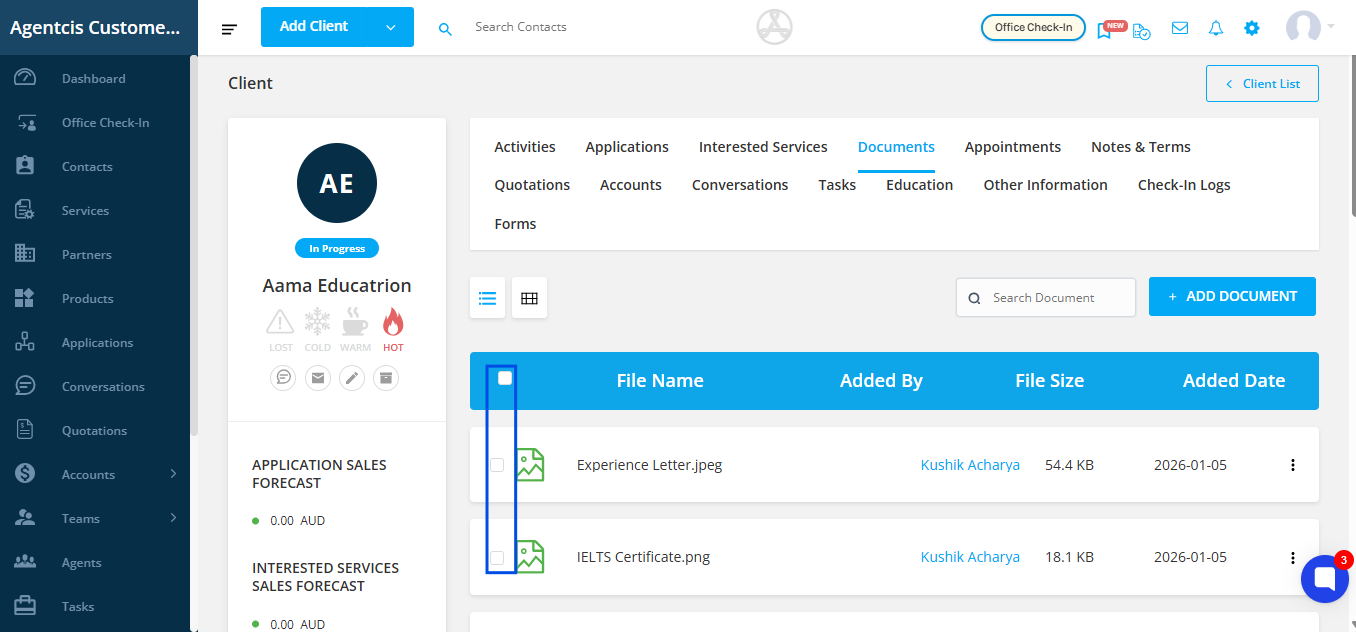
Step 6: Start the Bulk Download
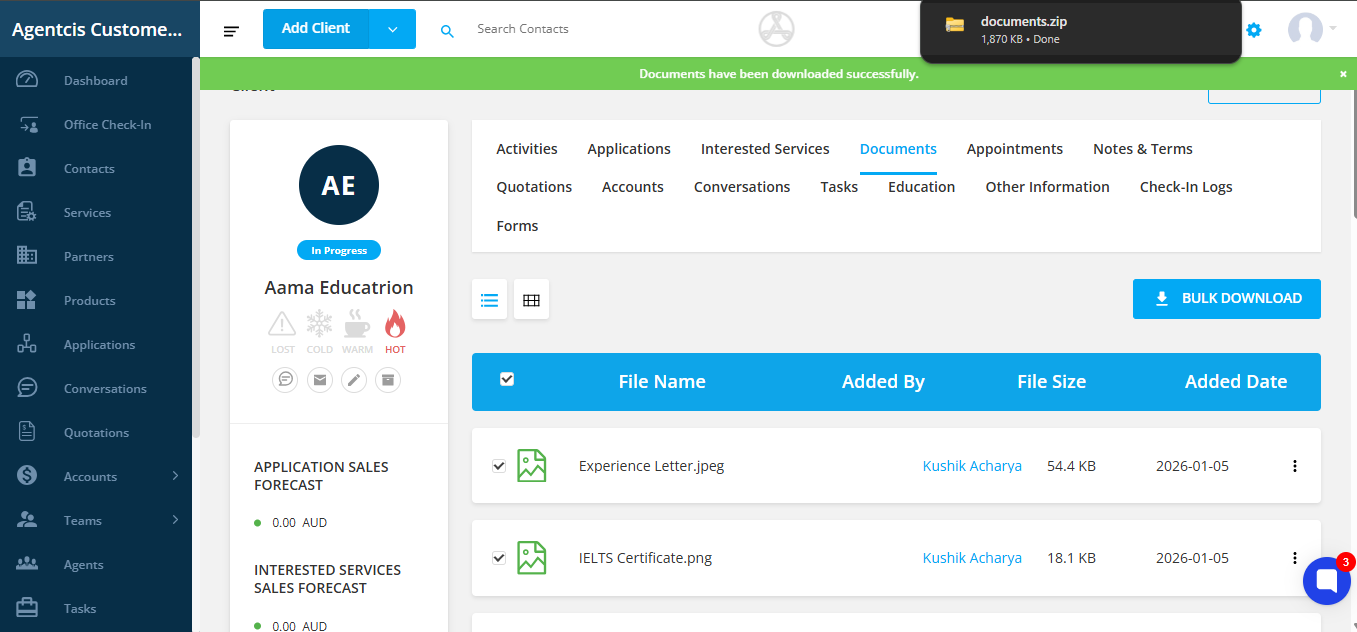
Once your documents are selected, click the Bulk Download button.

Step 7: Access Your Documents
The files will be compiled into a single ZIP folder and automatically downloaded to your device. Locate the downloaded ZIP file on your computer, extract its contents, and use the documents as needed.
Why Use Bulk Document Download?
Saves time: Download multiple files in one action instead of one by one.
Better organization: Keep related client documents together in one folder.
Easy tracking: Maintain a clear record of downloaded files for compliance or reference.
Convenient sharing: Share a collection of documents externally without accessing Agentcis repeatedly.